
Understanding Git and GitHub: The Basics for DevOps

Introduction:
In the world of DevOps, mastering version control is essential. Git, a distributed system, and GitHub, a platform for hosting and collaborating on Git repositories, are key tools. This guide covers the basics of Git and GitHub, their roles in DevOps, and how to effectively manage code. Whether you're a beginner or refining your skills, this overview sets the foundation for leveraging these essential tools.
What is a Version Control System (VCS)?
A Version Control System helps manage and track changes to your code over time. It’s like a time machine for your project, allowing you to revert to earlier versions and collaborate effectively.
Types of Version Control Systems
Local Version Control System (LVCS)
In LVCS, all the changes are stored in a local database on your computer. It’s simple but lacks the ability to collaborate with others efficiently.
Centralized Version Control System (CVCS)
In a CVCS, all files and versions are stored on a central server. This lets multiple people collaborate easily, but if the server is down, no one can access the files. Examples include Subversion (SVN) and Perforce.
Distributed Version Control System (DVCS)
DVCS stores the full project history on every user’s computer. Git and Mercurial are common examples. This enables multiple developers to work on a project simultaneously without relying on a central server.
What is a Git?
Git is a powerful Distributed Version Control System used in software development to track code changes. It allows multiple developers to work on the same project efficiently. Git keeps a complete history of changes and enables you to revert to previous versions if needed.
What is GitHub?
GitHub is a web-based platform that uses Git for version control and collaboration.
It hosts repositories where developers can store and manage their code, track issues, and collaborate on projects with others.
GitHub also offers features like pull requests, code reviews, and project management tools to help teams work together more effectively.
Benefits of DVSCs
DVCS offers several benefits:
Better Collaboration: Every developer has a complete project history.
Greater Flexibility: Work offline and sync later (
DVCS allows developers to work offline, commit changes, and then push their changes to the central repository when they are back online).Faster Operations: Local commits, diffs, and merges are quicker.
Time Savings: Teams can work simultaneously on different tasks.
Enhanced Security: Each copy is a backup in case of server failure.
What is git, and why is it important?
Git is crucial for modern software development as it efficiently manages code changes, enables collaboration, and maintains a complete history of modifications, thereby enhancing productivity and ensuring code quality.
Git is crucial in DevOps for its:
Version Control: Track and revert changes easily.
Collaboration: Multiple developers can contribute without conflicts.
Branching and Merging: Experiment freely with branches and merge when ready.
Backup and Restore: Always have a full project history.
Integration: Git works with many CI/CD tools, making it a staple in DevOps workflows.
What is the difference between the main branch and the master branch?
Historically, the primary branch was called “master.” However, many projects now use “main” as the default branch name. Both serve the same purpose as the primary branch in a repository.
What's the distinction between Git and GitHub?
Git is a version control system that you install and run locally on your computer.
GitHub is a web-based platform that hosts Git repositories and enables collaboration.
How Do You Create a New Repository on GitHub?
1. Go to GitHub and log in.
2. Click on the “+” icon in the upper-right corner and select “New repository.”
3. Enter a repository name and description.
4. Choose to make it public or private.
5. Click “Create repository.”
What is the Difference Between a Local & Remote Repository? How do I connect local to remote?
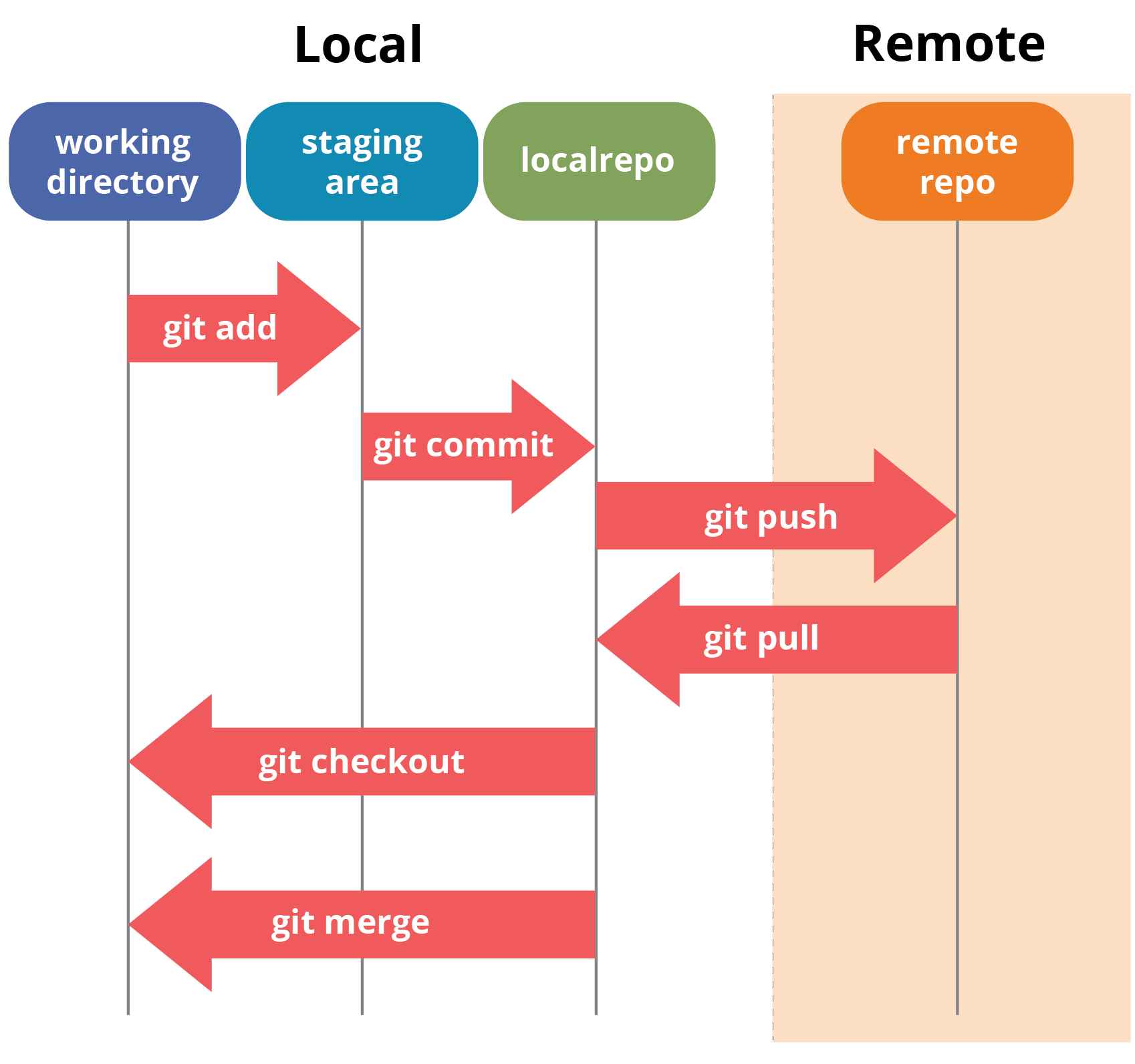
A local repository exists on your computer, while a remote repository is hosted on a server like GitHub. To connect a local repository to a remote one, you use the git remote add command followed by the remote repository’s URL.
git remote add origin <remote_repository_url>
How do I install Git?
Step 1: To get started, go to the official Git website (https://git-scm.com/downloads) and download the appropriate installer for your operating system.
Step 2: Run the installer.
Step 3: Select Installation Options(On Windows and macOS, you can accept the default installation options, but on Linux, you may need to customize the installation process depending on your distribution).
Step 4: Complete the installation.
Step 5: Verify the Installation using git --version.
Tasks
Task 1: Set Your User Name and Email Address
git config --global user.name "Your Name"
git config --global user.email "your.email@example.com"
Task 2: Create a Repository Named "DevOps" on GitHub
Follow the steps above to create a new repository on GitHub named "DevOps."
On your local machine, initialize a Git repository:
mkdir DevOps
cd DevOps
git init
3. Connect your local repository to the remote repository on GitHub:
git remote add origin <remote_repository_url>
git remote add origin https://github.com/yourusername/DevOps.git
4. Create a new file and add content:
mkdir -p Git
echo "This is Day 01 task" > Git/Day-01.txt
5. Add the file to the staging area, commit, and push to GitHub:
git add .
git commit -m "Add Day-01.txt"
git push origin master
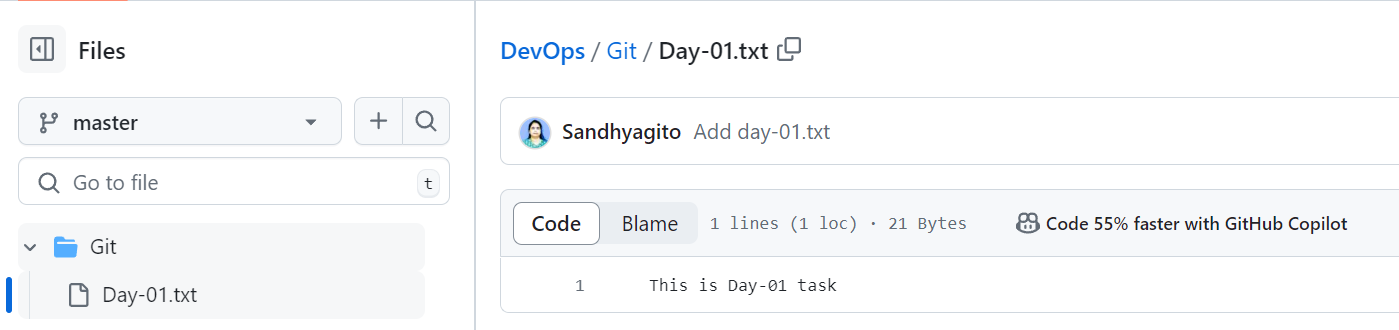
Below are the local commits that were pushed to the remote repository named 'DevOps,' along with the content of the file created in the 'Git' folder.
Here’s a simple and clear explanation of each command:
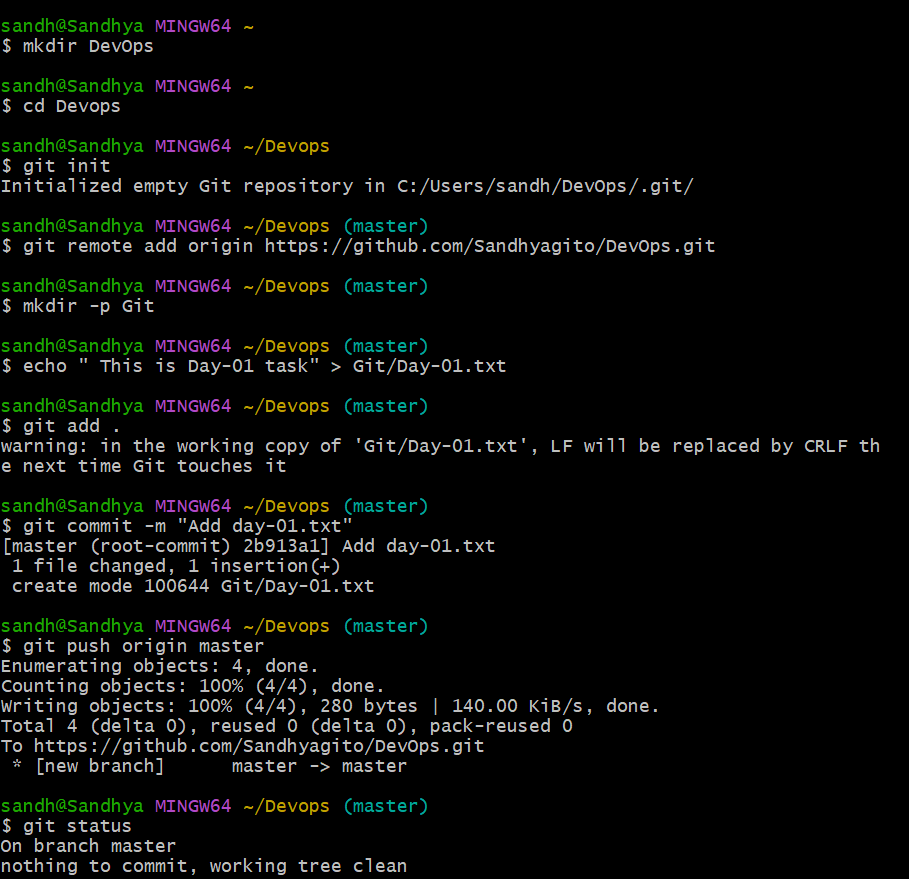
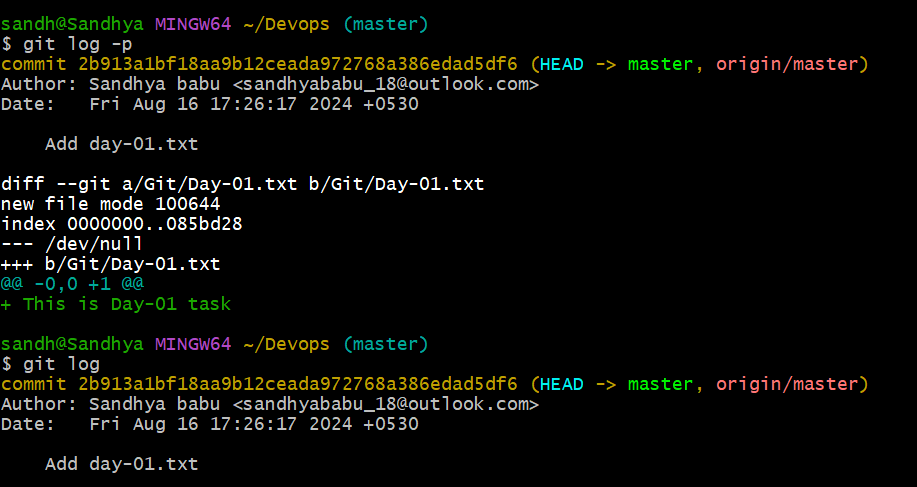
mkdir DevOps: Creates a new folder named "DevOps."cd DevOps: Moves into the "DevOps" folder.git init: Initializes an empty Git repository in the current folder.git remote add origin <remote_repository_url>: Links your local repository to a remote one (e.g., on GitHub).mkdir -p Git: Creates a "Git" folder inside "DevOps."echo "This is Day 01 task" > Git/Day-01.txt: Creates a file named "Day-01.txt" with the text "This is Day 01 task."git add .: Stages all changes (new or modified files) for the next commit.git commit -m "Add Day-01.txt": Saves the staged changes with a message describing what was done.git push origin master: Uploads your local commits to the remote "master" branch.git status: Shows the current status of your repository, like staged and unstaged changes.git log: Displays a list of past commits, showing who made changes and when.git log -p: Shows commit history along with detailed changes made in each commit (what was added or removed).
Snapshot of the Git Workflow:
Conclusion
Git and GitHub are fundamental tools in DevOps, enabling efficient version control, streamlined collaboration, and smoother CI/CD pipelines. By mastering Git for managing code changes and GitHub for hosting repositories, teams can work more effectively, automate workflows, and maintain a reliable history of project development. Embracing these tools is key to succeeding in a DevOps environment.

